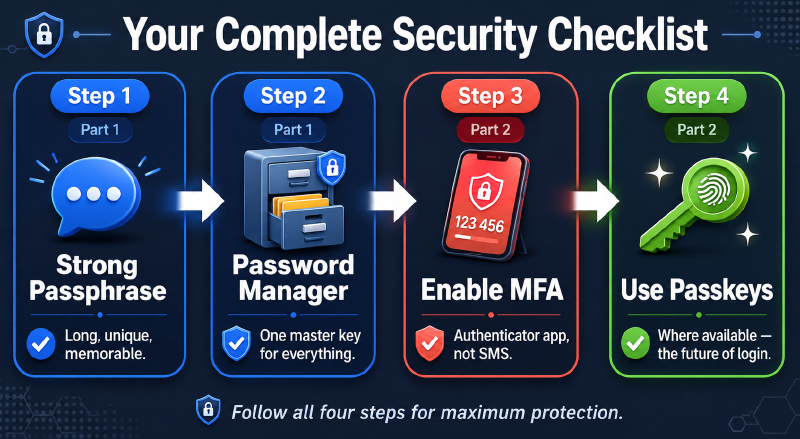
In Part 1, we covered how to create strong, memorable passwords and why a password manager is a non-negotiable tool for staying secure. Now let’s go further — adding a second layer of protection and looking at where authentication is headed.
Step 3: Adding the Second Layer of Defense #
If your password is ever stolen, adding a Multi-Factor Authentication method (MFA or 2FA for short) will likely still keep your account secure. After all, two walls are better than one, and setting up MFA is not very difficult. You have probably seen MFA before when a service asks you to check your phone for a login code or to scan your fingerprint after you have put in your password.
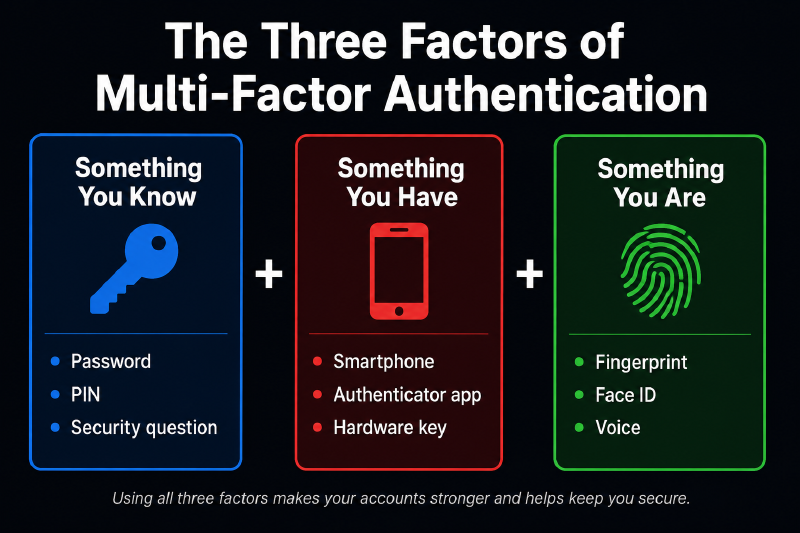
MFA’s security is derived from three factors:
- Something you know, like a PIN or a personal question
- Something you have, like your smartphone
- Something you are, like your fingerprint or face
Also, when setting up MFA, avoid using SMS text codes if other options are available. SMS is unencrypted and therefore less secure, so try to use other methods like one-time passwords (OTP) and authenticator apps like 2FAS or Authy.
Step 4: The Future is Here - Switching to Passkeys #
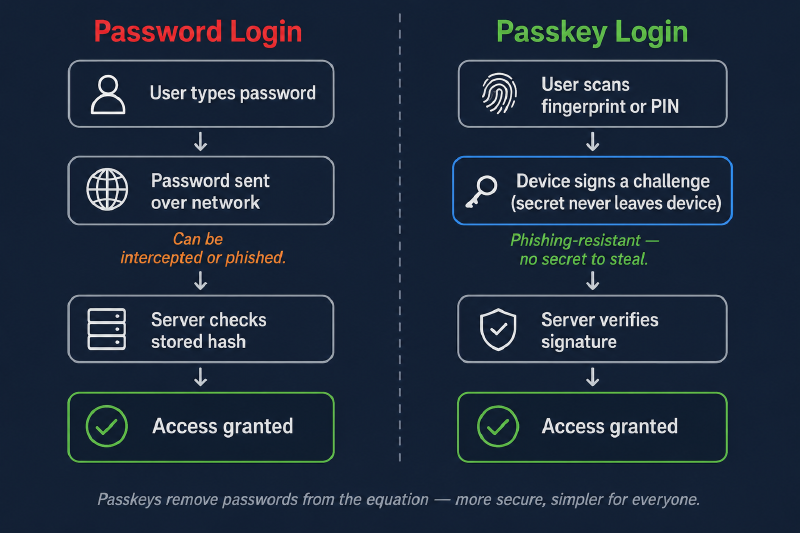
To combat the ever-growing threat of cybercrime and account theft, the FIDO Alliance—along with companies like Apple, Google, and Microsoft—has invented a new technology that aims to replace passwords, called passkeys. They do this by storing a cryptographic “key” on your device, which allows you to log in with biometrics or a PIN instead of entering a password.
Passkeys are beneficial because they are essentially phishing-resistant and remove the necessity for memorization. Furthermore, they are more convenient and accessible, so use them wherever you can, as more and more sites adopt them.
To setup passkeys, go to your accounts’ Security settings and look for a “Passkeys” or “Sign-in methods” section. You will then be asked to enter a PIN, scan your fingerprint, etc, to store your passkey on your device or in an authenticator app.
Start Small, Stay Secure #
These steps are simple ways to level up your security, but don’t try to fix everything at once. Start off by securing some of your most important accounts, like your email and banking. Remember that modern security is actually getting simpler than before. Making yourself secure takes only a few extra seconds, but makes a big difference when a hacker tries to steal your identity, money, or digital life.